Manage your Up Next queue
Play Next, Play Later, drag to reorder, and clear the queue when you want a fresh start.
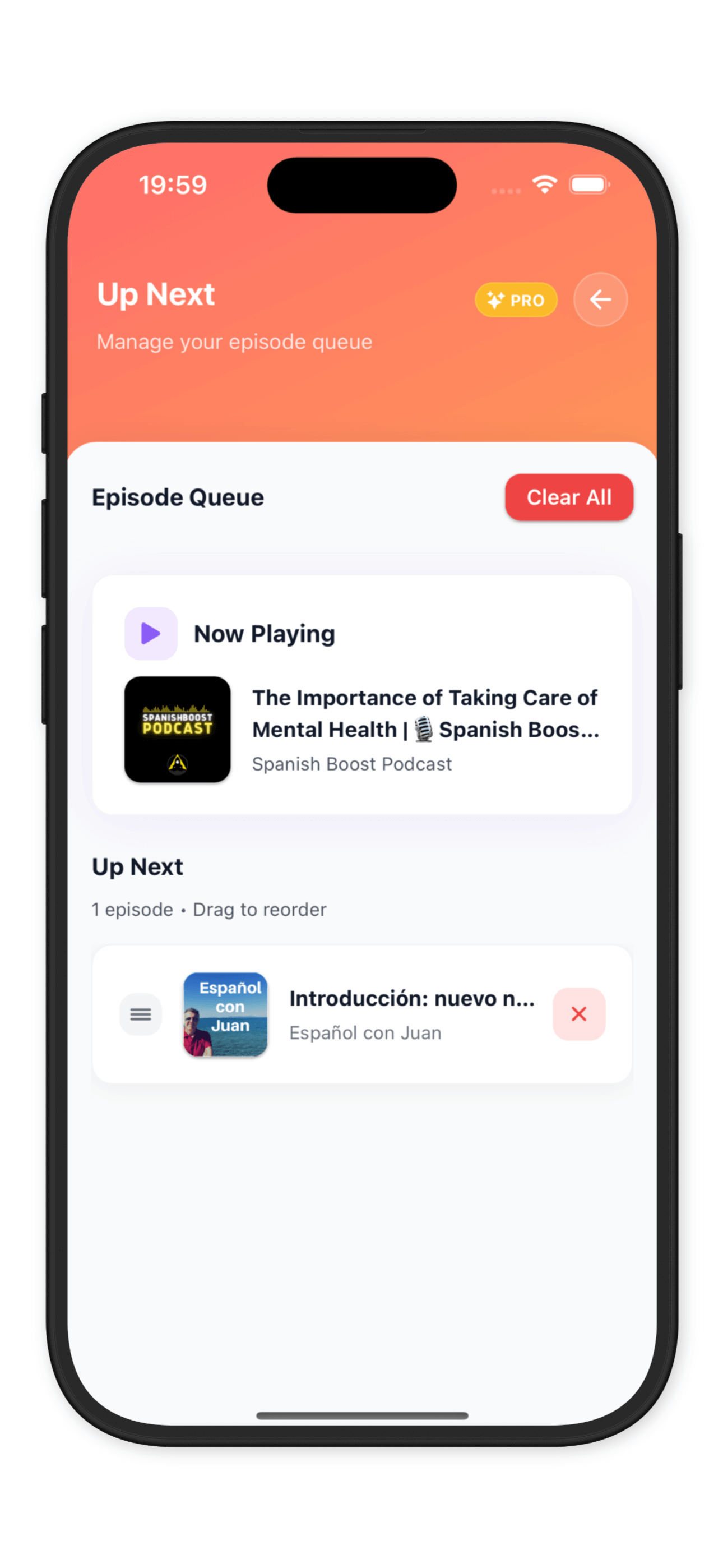
The Up Next screen shows what’s coming after the current episode. Open it by tapping the queue icon in the top-right of the player.
What you’ll see
- The Now Playing card is pinned at the top
- Your manually queued episodes are listed below it
- If Auto-Continue is on, a separate Auto-Continue card appears at the bottom showing what will play when the manual queue runs out — it’s not part of the queue itself
Add episodes to the queue
Long-press any episode (or tap the ⋯) → Play Next or Play Later.
Reorder by dragging
Drag any episode up or down to change its position. Changes save automatically.
Remove an episode
Swipe left on any queued episode, or use the episode’s context menu.
Clear all
Tap Clear to remove everything except the currently playing episode.